> ## Documentation Index
> Fetch the complete documentation index at: https://guide.smsu.in.th/llms.txt
> Use this file to discover all available pages before exploring further.
# การใช้งาน
## เข้าใช้งาน SMSU One Stop Guide
สามารถเข้าได้จากลิงก์ [https://guide.smsu.in.th](https://guide.smsu.in.th)
## เพิ่มเป็น Web App บนหน้าจอโทรศัพท์
เพิ่มเว็บไซต์นี้เป็นแอปพลิเคชันบนหน้าจอหลักของโทรศัพท์ เพื่อความสะดวกในการเข้าถึง
### iOS
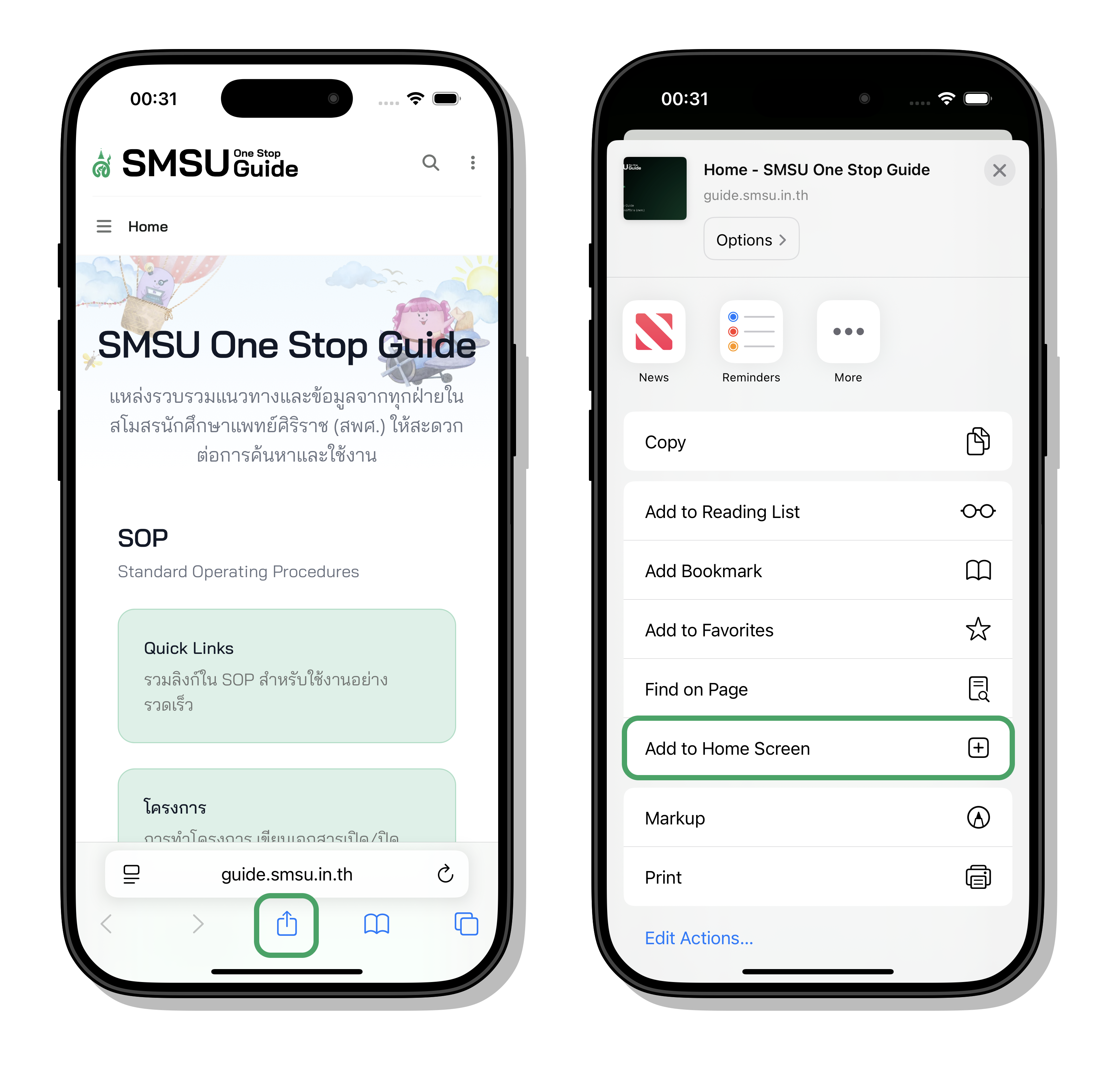
1. เปิด Safari แล้วเข้าไปที่ [https://guide.smsu.in.th](https://guide.smsu.in.th)
2. แตะที่ไอคอน "แชร์" (Share) ที่ด้านล่างของหน้าจอ
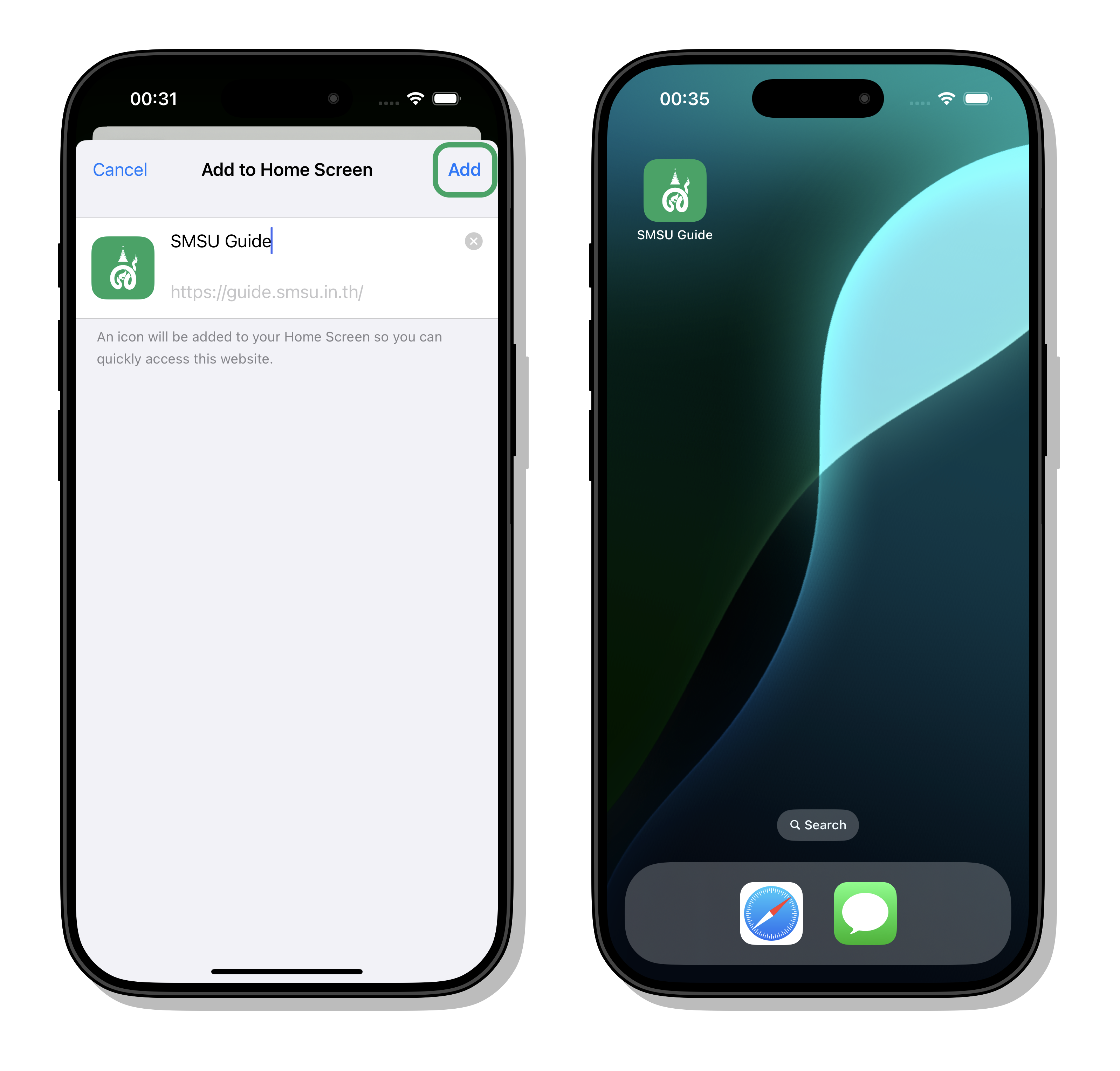
3. เลือก "เพิ่มไปยังหน้าจอหลัก" (Add to Home Screen)
4. แตะ "เพิ่ม" (Add)
5. ไอคอนจะปรากฏบนหน้าจอหลัก
 ### Android
1. เปิด Chrome แล้วเข้าไปที่ [https://guide.smsu.in.th](https://guide.smsu.in.th)
2. แตะที่ไอคอน "เมนู" (สามจุด) ที่มุมขวาบน
3. เลือก "เพิ่มไปยังหน้าจอหลัก" (Add to Home Screen)
4. แตะ "เพิ่ม" (Add)
5. เลือก Add to Home screen
6. ไอคอนจะปรากฏบนหน้าจอหลัก
### Android
1. เปิด Chrome แล้วเข้าไปที่ [https://guide.smsu.in.th](https://guide.smsu.in.th)
2. แตะที่ไอคอน "เมนู" (สามจุด) ที่มุมขวาบน
3. เลือก "เพิ่มไปยังหน้าจอหลัก" (Add to Home Screen)
4. แตะ "เพิ่ม" (Add)
5. เลือก Add to Home screen
6. ไอคอนจะปรากฏบนหน้าจอหลัก