> ## Documentation Index
> Fetch the complete documentation index at: https://guide.smsu.in.th/llms.txt
> Use this file to discover all available pages before exploring further.
# Media
> รูปภาพ วิดีโอ และการฝังสื่ออื่น ๆ ในหน้าเนื้อหา
## Image
เลือก `Image` จาก[รายการ components](/it/guide/edit/components/basicblocks#เริ่มใช้-components) แล้วอัพโหลดไฟล์รูปภาพหรือเลือกจากไฟล์ที่มีอยู่แล้ว
 ## Frames
เลือก `Frame` จาก[รายการ components](/it/guide/edit/components/basicblocks#เริ่มใช้-components) เพื่อสร้างกรอบสำหรับเนื้อหาภายใน เช่น รูปภาพ วิดีโอ หรือข้อความ
ใน Web Editor กด สามจุดด้านขวาของ `Frame` เพื่อใส่ caption หรือคำบรรยายของกรอบนั้น
สามารถใช้ `Frame` เพื่อสร้างรูปภาพพร้อมคำบรรยายด้านล่างได้
## Embeds
เลือก `Embed` จาก[รายการ components](/it/guide/edit/components/basicblocks#เริ่มใช้-components) แล้ววางโค้ดฝัง เช่น YouTube, Google Drive, หรือเว็บไซต์อื่น ๆ
### YouTube
## Frames
เลือก `Frame` จาก[รายการ components](/it/guide/edit/components/basicblocks#เริ่มใช้-components) เพื่อสร้างกรอบสำหรับเนื้อหาภายใน เช่น รูปภาพ วิดีโอ หรือข้อความ
ใน Web Editor กด สามจุดด้านขวาของ `Frame` เพื่อใส่ caption หรือคำบรรยายของกรอบนั้น
สามารถใช้ `Frame` เพื่อสร้างรูปภาพพร้อมคำบรรยายด้านล่างได้
## Embeds
เลือก `Embed` จาก[รายการ components](/it/guide/edit/components/basicblocks#เริ่มใช้-components) แล้ววางโค้ดฝัง เช่น YouTube, Google Drive, หรือเว็บไซต์อื่น ๆ
### YouTube

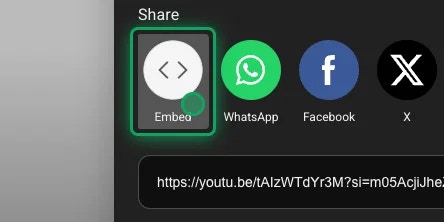
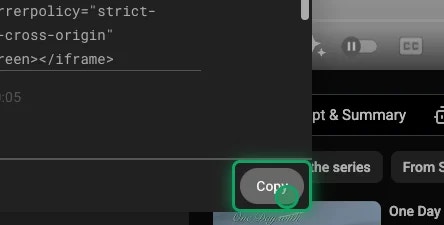 หากเป็นไปได้ ให้ลบส่วน `width="XXX"` และ `height="XXX"` ออก แล้วเพิ่ม `className="w-full aspect-video rounded-xl"` แทน
เพื่อให้แสดงผลเต็มความกว้างของหน้าและมีอัตราส่วน 16:9
```html {2-4} theme={null}
```
### Google Drive
คัดลอกโค้ดฝังด้านล่างนี้ แล้ววางใน Web Editor หลังเลือก `Embed` จาก[รายการ components](/it/guide/edit/components/basicblocks#เริ่มใช้-components)
```html {3} theme={null}
```
แทนที่ `FILE_ID` ด้วย ID ของไฟล์ที่ต้องการฝัง
สามารถหา ID ของไฟล์จาก URL หลังกด Share แล้วคัดลอก โดยอยู่ระหว่าง `/d/` และ `/view` เช่น
URL ด้านล่างมี ID คือ `1QtbUIFt6jiecFFEdnex-mGqR0VnJLvWY`
```
https://drive.google.com/file/d/1QtbUIFt6jiecFFEdnex-mGqR0VnJLvWY/view?usp=sharing
```
ห้ามวาง URL ที่คัดลอกมาจาก Google Drive หลังกด Share โดยตรง เพราะลงท้ายด้วย `/view`
ซึ่งไม่สามารถแสดงผลได้ ให้แก้เป็น `/preview` แทน
### Google Calendar
ไปที่ [Google Calendar](https://calendar.google.com) แล้วเลือกปฏิทินที่ต้องการฝัง >
กด สามจุดด้านขวา
หากเป็นไปได้ ให้ลบส่วน `width="XXX"` และ `height="XXX"` ออก แล้วเพิ่ม `className="w-full aspect-video rounded-xl"` แทน
เพื่อให้แสดงผลเต็มความกว้างของหน้าและมีอัตราส่วน 16:9
```html {2-4} theme={null}
```
### Google Drive
คัดลอกโค้ดฝังด้านล่างนี้ แล้ววางใน Web Editor หลังเลือก `Embed` จาก[รายการ components](/it/guide/edit/components/basicblocks#เริ่มใช้-components)
```html {3} theme={null}
```
แทนที่ `FILE_ID` ด้วย ID ของไฟล์ที่ต้องการฝัง
สามารถหา ID ของไฟล์จาก URL หลังกด Share แล้วคัดลอก โดยอยู่ระหว่าง `/d/` และ `/view` เช่น
URL ด้านล่างมี ID คือ `1QtbUIFt6jiecFFEdnex-mGqR0VnJLvWY`
```
https://drive.google.com/file/d/1QtbUIFt6jiecFFEdnex-mGqR0VnJLvWY/view?usp=sharing
```
ห้ามวาง URL ที่คัดลอกมาจาก Google Drive หลังกด Share โดยตรง เพราะลงท้ายด้วย `/view`
ซึ่งไม่สามารถแสดงผลได้ ให้แก้เป็น `/preview` แทน
### Google Calendar
ไปที่ [Google Calendar](https://calendar.google.com) แล้วเลือกปฏิทินที่ต้องการฝัง >
กด สามจุดด้านขวา
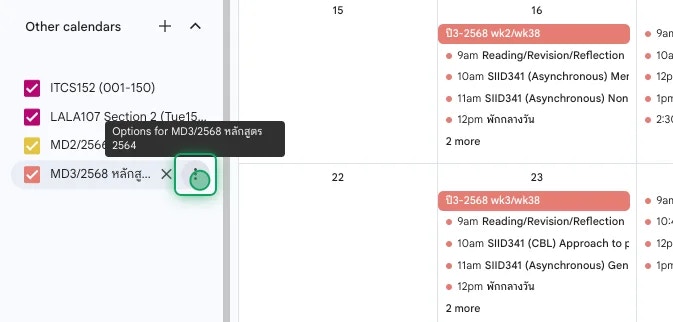
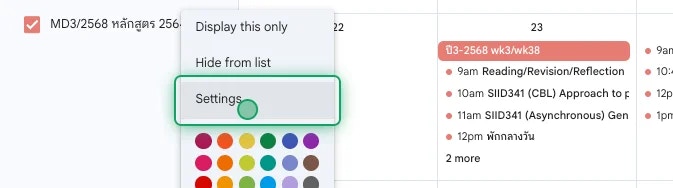 เลื่อนหาส่วน "Integrate calendar" >
คัดลอกโค้ดฝังที่ "Embed code" ซึ่งขึ้นต้นด้วย `
ลบตัวแปรอื่นที่ไม่ใช่ `src` ออก เช่น `style`, `width`, `height`, `frameborder`, `scrolling` แล้วใส่ `className="aspect-[4/3] w-full rounded-xl"` เพิ่มแทน
```html {2, 4-8} theme={null}
```
ถ้าไม่ปรับแต่งโค้ดฝังที่คัดลอกมา เมื่อ Save Changes แล้ว หน้านั้นจะ error
เลื่อนหาส่วน "Integrate calendar" >
คัดลอกโค้ดฝังที่ "Embed code" ซึ่งขึ้นต้นด้วย `
ลบตัวแปรอื่นที่ไม่ใช่ `src` ออก เช่น `style`, `width`, `height`, `frameborder`, `scrolling` แล้วใส่ `className="aspect-[4/3] w-full rounded-xl"` เพิ่มแทน
```html {2, 4-8} theme={null}
```
ถ้าไม่ปรับแต่งโค้ดฝังที่คัดลอกมา เมื่อ Save Changes แล้ว หน้านั้นจะ error