> ## Documentation Index
> Fetch the complete documentation index at: https://guide.smsu.in.th/llms.txt
> Use this file to discover all available pages before exploring further.
# Basic, Headers and Text
> การใช้งาน Components การจัดรูปแบบข้อความ และการแทรกสมการ
## เริ่มใช้ Components
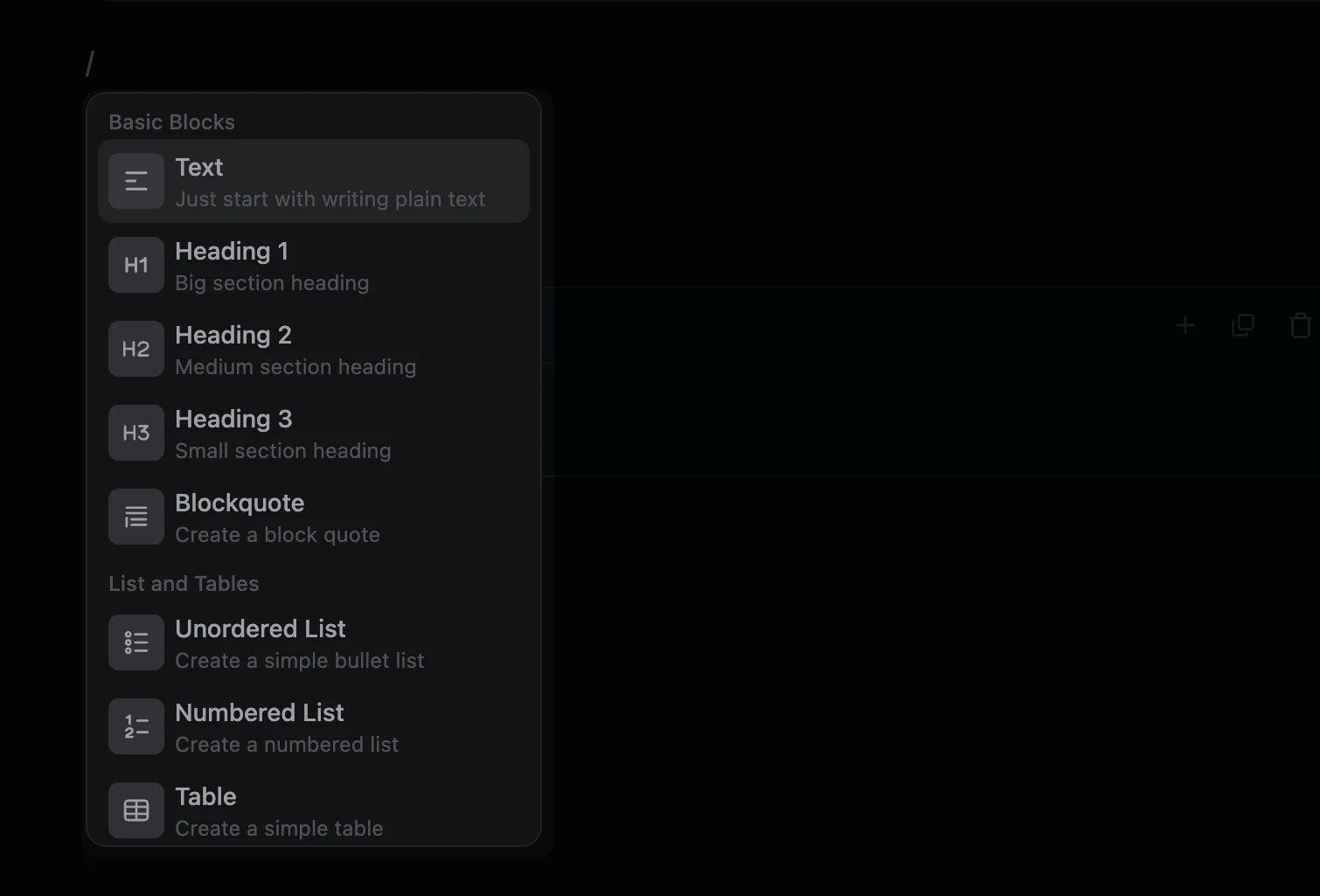
พิมพ์ `/` เพื่อแสดงรายการ components สำเร็จรูปที่สามารถเพิ่มได้
สามารถพิมพ์ชื่อ component ต่อท้าย `/` เพื่อค้นหา component ที่ต้องการในรายการ หรือใช้ลูกศรเลื่อนขึ้น-ลง จากนั้นกด Enter เพื่อเพิ่ม component ที่เลือก
 ## Headings
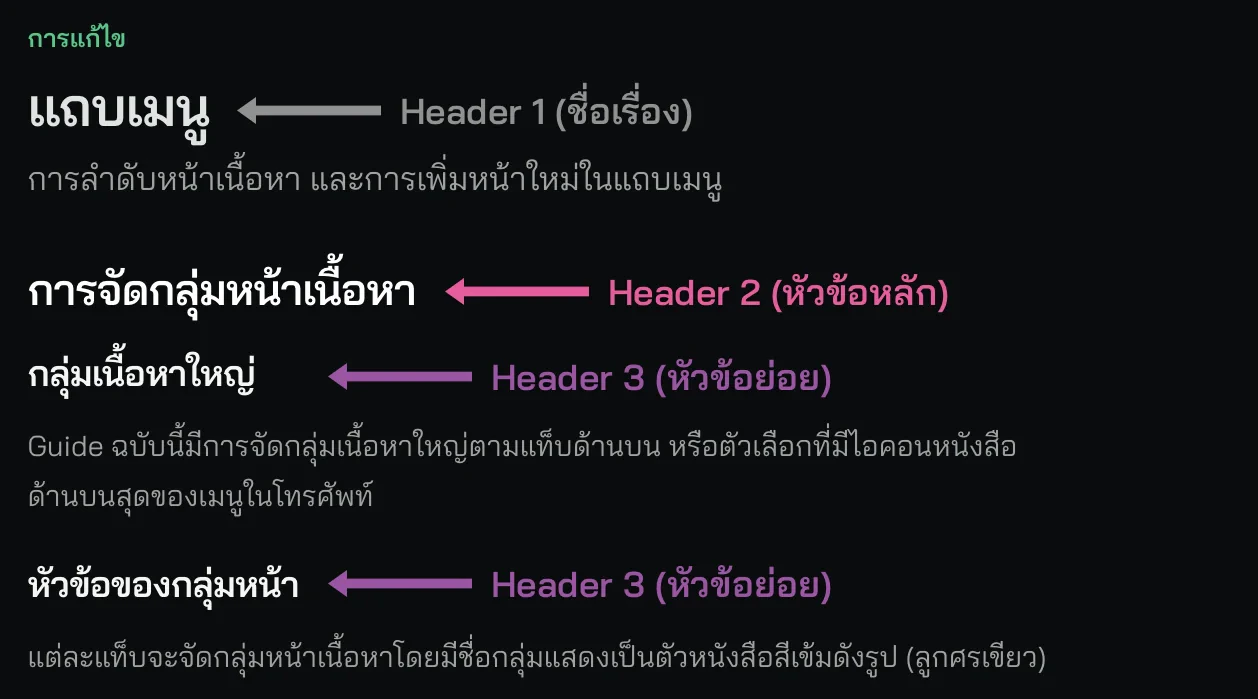
หัวข้อ (Headings) แบ่งออกเป็น 3 ระดับ คือ Heading 1, Heading 2, และ Heading 3 ซึ่งมีขนาดตัวอักษรที่ลดลงตามลำดับ
โดยปกติแล้ว **Heading 1** ใช้เป็นชื่อเรื่อง (Title) ที่แต่ละหน้ามีเพียงตำแหน่งเดียวเท่านั้น (ลูกศรเทา) ซึ่งในกรณีนี้ เราได้ตั้งค่าไปใน[จัดการหน้าเนื้อหา](/it/guide/edit/pages)เรียบร้อยแล้ว
ให้ใช้ **Heading 2 เป็นหัวข้อหลัก** (ลูกศรชมพู) และ **Heading 3 เป็นหัวข้อย่อย** (ลูกศรม่วง) ของเนื้อหาเท่านั้น
สามารถสร้าง Heading อย่างรวดเร็วเมื่อขึ้นบรรทัดใหม่ ด้วยการพิมพ์ `##` + เว้นวรรค สำหรับ Heading 2
หรือพิมพ์ `###` + เว้นวรรค สำหรับ Heading 3
## Headings
หัวข้อ (Headings) แบ่งออกเป็น 3 ระดับ คือ Heading 1, Heading 2, และ Heading 3 ซึ่งมีขนาดตัวอักษรที่ลดลงตามลำดับ
โดยปกติแล้ว **Heading 1** ใช้เป็นชื่อเรื่อง (Title) ที่แต่ละหน้ามีเพียงตำแหน่งเดียวเท่านั้น (ลูกศรเทา) ซึ่งในกรณีนี้ เราได้ตั้งค่าไปใน[จัดการหน้าเนื้อหา](/it/guide/edit/pages)เรียบร้อยแล้ว
ให้ใช้ **Heading 2 เป็นหัวข้อหลัก** (ลูกศรชมพู) และ **Heading 3 เป็นหัวข้อย่อย** (ลูกศรม่วง) ของเนื้อหาเท่านั้น
สามารถสร้าง Heading อย่างรวดเร็วเมื่อขึ้นบรรทัดใหม่ ด้วยการพิมพ์ `##` + เว้นวรรค สำหรับ Heading 2
หรือพิมพ์ `###` + เว้นวรรค สำหรับ Heading 3
 ## Text Formatting
คลุมข้อความที่ต้องการเพื่อเปลี่ยนรูปแบบข้อความ
| **Format** | **Shortcut** | **Result** |
| ------------- | ---------------------- | ---------------------- |
| Bold | `Ctrl/Cmd`+`B` | **bold** |
| Italic | `Ctrl/Cmd`+`I` | *italic* |
| Underline | `Ctrl/Cmd`+`U` | underline |
| Strikethrough | `Ctrl/Cmd`+`Shift`+`S` | ~~strikethrough~~ |
| Code | `Ctrl/Cmd`+`E` | `code` |
| Link | `Ctrl/Cmd`+`K` | [link](#) |
| Superscript | - | superscript |
| Subscript | - | subscript |
## Linking
คลุมข้อความที่ต้องการแล้วกดไอคอนลิงก์ จะขึ้นช่องให้ใส่ลิงก์ที่ต้องการ
* ลิงก์กับหน้าภายใน guide ฉบับนี้ ให้พิมพ์ `/` แล้วเลือกหน้าที่ต้องการลิงก์
* ลิงก์กับ URL ภายนอก ให้วาง URL ลงไปได้เลย เช่น `https://google.com`
ห้ามใส่ลิงก์ที่เป็น URL เต็มกับลิงก์ภายใน guide ฉบับนี้ เช่น `/sop/project/open`
ห้ามใส่เป็น `https://guide.smsu.in.th/sop/project/open` เพราะจะทำให้กดลิงก์แล้วโหลดช้าลง
## Blockquotes
มักใช้สำหรับข้อความคำพูด หรือยกตัวอย่างการเขียน
> Example singleline blockquote
> อาจารย์ ... คน
>
> เจ้าหน้าที่ ... คน
>
> นักศึกษาแพทย์ชั้นปีที่ 1 ... คน (ถ้าเป็นนศพ.ศิริราชให้เขียนแยกชั้นปี)
## LaTeX
LaTeX เป็นเครื่องมือที่ใช้พิมพ์สมการทางคณิตศาสตร์ สามารถใช้งาน [LaTeX Math Editor](https://cortexjs.io/mathfield/demo/) แล้วคัดลอก LaTeX มาใช้
### Inline Math
สมการที่แทรกในข้อความ เช่น $(a^2 + b^2 = c^2)$ เป็นต้น
### Block Math
สมการแบบเต็มบรรทัด
$$
\exists \, x \notin [0,1]
$$
## Text Formatting
คลุมข้อความที่ต้องการเพื่อเปลี่ยนรูปแบบข้อความ
| **Format** | **Shortcut** | **Result** |
| ------------- | ---------------------- | ---------------------- |
| Bold | `Ctrl/Cmd`+`B` | **bold** |
| Italic | `Ctrl/Cmd`+`I` | *italic* |
| Underline | `Ctrl/Cmd`+`U` | underline |
| Strikethrough | `Ctrl/Cmd`+`Shift`+`S` | ~~strikethrough~~ |
| Code | `Ctrl/Cmd`+`E` | `code` |
| Link | `Ctrl/Cmd`+`K` | [link](#) |
| Superscript | - | superscript |
| Subscript | - | subscript |
## Linking
คลุมข้อความที่ต้องการแล้วกดไอคอนลิงก์ จะขึ้นช่องให้ใส่ลิงก์ที่ต้องการ
* ลิงก์กับหน้าภายใน guide ฉบับนี้ ให้พิมพ์ `/` แล้วเลือกหน้าที่ต้องการลิงก์
* ลิงก์กับ URL ภายนอก ให้วาง URL ลงไปได้เลย เช่น `https://google.com`
ห้ามใส่ลิงก์ที่เป็น URL เต็มกับลิงก์ภายใน guide ฉบับนี้ เช่น `/sop/project/open`
ห้ามใส่เป็น `https://guide.smsu.in.th/sop/project/open` เพราะจะทำให้กดลิงก์แล้วโหลดช้าลง
## Blockquotes
มักใช้สำหรับข้อความคำพูด หรือยกตัวอย่างการเขียน
> Example singleline blockquote
> อาจารย์ ... คน
>
> เจ้าหน้าที่ ... คน
>
> นักศึกษาแพทย์ชั้นปีที่ 1 ... คน (ถ้าเป็นนศพ.ศิริราชให้เขียนแยกชั้นปี)
## LaTeX
LaTeX เป็นเครื่องมือที่ใช้พิมพ์สมการทางคณิตศาสตร์ สามารถใช้งาน [LaTeX Math Editor](https://cortexjs.io/mathfield/demo/) แล้วคัดลอก LaTeX มาใช้
### Inline Math
สมการที่แทรกในข้อความ เช่น $(a^2 + b^2 = c^2)$ เป็นต้น
### Block Math
สมการแบบเต็มบรรทัด
$$
\exists \, x \notin [0,1]
$$